
We've been busy this year. Pie now has AI assistant connectors for Claude, ChatGPT, Microsoft 365 Copilot and Gemini, so you can run your Pie projects from your favorite AI assistant. We spent a good part of this year building a solid open API, a secure and AI-friendly way to connect your other systems to Pie. And if you prefer dark mode because it's easier on the eyes, you can now switch from light to dark with one click.
Here's what each one means for you.
AI assistant connectors now available
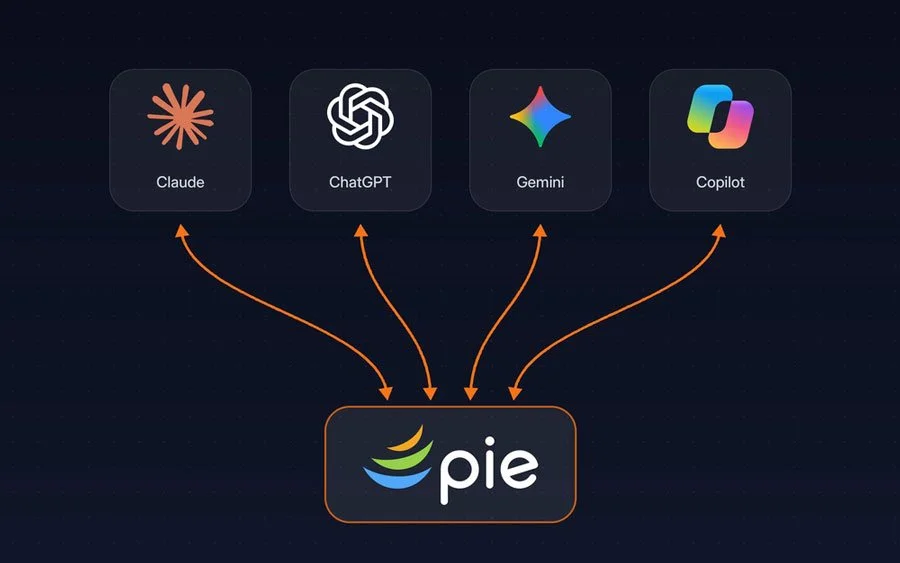
I'll admit it. I spend most of my day in an AI assistant now (Claude). Our own development tickets live in Pie, and these days I file, update and move most of them just by asking Claude. No clicking around. It was quick to see how much time that saves.
So we built it for you. Pie now connects to Claude, ChatGPT, Gemini Enterprise, and Microsoft 365 Copilot using the Pie MCP server connector (MCP is the standard way AI assistants connect to other apps).
How to set up connectors guides
Add Pie as a connector in your assistant, sign in to Pie, pick your organization and approve. That's it. It's available to organizations on the Enterprise plan, including Enterprise trials.
Yes, we still have the create from AI functions inside Pie
Pie’s internal create project from AI and other create from AI features are still the best ways to use AI to build a project from scratch since we have custom-made instructions to help you get the best content in the right Pie format. Also, we have recently updated the Pie AI functionalities with a new prompt page design, added a newer OpenAI GPT model, and added a token counter so you can watch how many tokens are used.
Ask your projects anything
The assistant can read your projects, slices, tasks, who's assigned to what, timesheets and posts. So you just ask:
"Which of my projects have overdue tasks this week?"
"Summarize where the Salesforce implementation stands for the sponsor."
"How many hours did we log on the Delta project last month?"
Hand off the busywork
Keep read + write access turned on and it can also make changes for you:
"Add a QA review task to the Testing slice and assign it to Maria."
"Move every task in the Build slice out one week."
"Log two hours on the design review for today."
It can create tasks, change dates, link dependencies, assign people, log time and write posts.
You decide how much it can touch
When you connect, you pick one organization and choose Read only or Read + write. Even with write access, the assistant can only change what you yourself are allowed to change. Some things it can never do, such as touch billing, delete projects or change your account settings. See the page that shows what the AI assistant can read, can update, and cannot update.
Managing AI assistant access from within Pie
An organization admin sees and can manage or block AI connections on the Pie organization’s Integration tab. They can block one person, or turn AI connections off for the whole organization with one switch.
Each Pie user can also see and manage their own connections on their Account page, with when each was last used, and disconnect any of them.
The new open API

Pie has always run on its own API. Our web app uses it for everything you click. This year we opened it up to you, carefully. And yes, it's AI friendly. The connectors above run on this same API, behind the same safety rules.
Share the Pie GraphQL API documentation with your AI assistant to make it easy for your integration team to set up the APIs between Pie and your system of choice.
Stop typing the same hours twice
With the API, you can establish integrations such as pull logged hours from Pie into Salesforce or your billing system. Or pull Jira work logs into Pie timesheets. Each entry could carry the other system's own ID, so sending it again updates the hours instead of doubling them. You could sync every night without worrying.
Start a project the moment the deal closes
Your CRM marks a deal as won, and Pie creates the project from your onboarding recipe with the team already assigned. Nobody has to remember to set it up.
One key for the whole organization
Your Pie organization admin creates an Organization Access Token on the Integration tab and chooses Read or Read + write. The token belongs to the organization, not to whoever made it, so it keeps working when that person changes roles or leaves. It sees that one organization only and nothing else.
Every change has a name on it
Anything a token changes shows up in task history, comments and emails as "API User #" plus a short code. When someone asks "who moved my due date?", you'll know it was the integration and not Bob.
Where to start
Start with the Getting Started with the Pie API article.
The full API reference is located at: developers.my.pie.me/welcome. Organization Access Tokens are available to organizations on the Enterprise plan; trials aren't included.
Dark mode
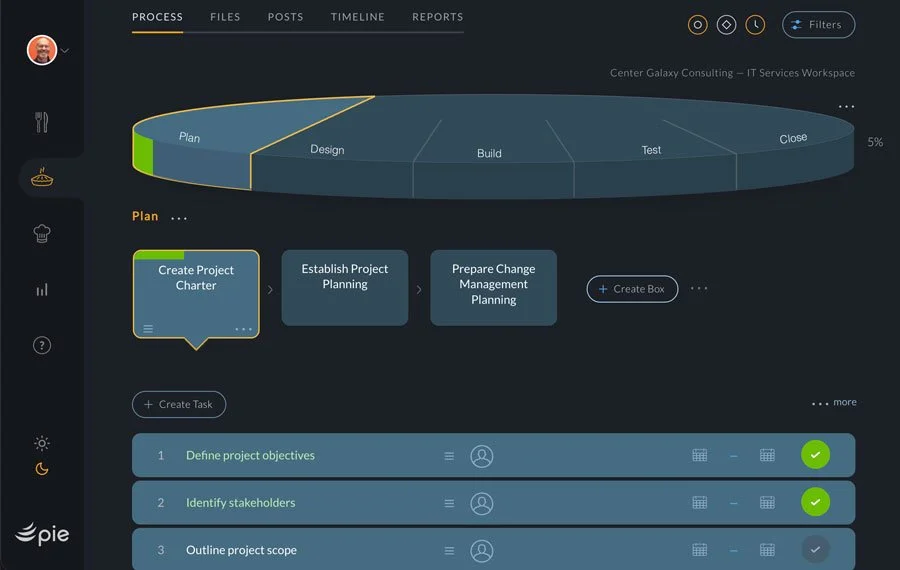
Some of us plan projects late at night. Some of us just like it dark. I'm in the second group.
One click, and it stays that way
Pie still opens in light mode. If you want dark, click the moon icon in the left sidebar just above the Pie logo icon. That's it, one click. Changed your mind? Click the sun to go back.
Pie saves your choice with your account, not your browser. Pick dark on your laptop and Pie is dark on your desktop and phone too. It's your setting only, so your teammates keep whatever they picked.
Every page, not just the main ones
We didn't stop at the home screen. I went through Pie page by page such as the On My Plate and Team's Plate, projects, timelines and reports, charts, recipes, timesheets and posts, settings, and other pages.
A few pages stay light for now: the Help Center, the public Recipe Store pages, and the sign-in pages.
Light mode got a little love too
While we were at it, we tuned light mode as well. The page background, sidebar and pies have a bit more contrast, so things are easier to tell apart. If you never touch the toggle, you'll still notice Pie looks a little crisper.
Pie technical stack update
Along with the above big changes, we made a number of other updates this year such as upgrading our underlying platform stack (server, database layer, and web interface) to current versions, for better security, speed and long-term support (this was a major upgrade). We also updated components to address known security advisories.
AI is changing how teams work, fast. We want Pie to be where your projects, recipes and know-how live, whichever assistant you use to reach them. Try the connectors, build something on the API, or just click the moon. Then tell us what you think.
Thanks for reading and enjoy your holidays!
Written by Paul Dandurand, PieMatrix Founder